
The cost of regular collection depends on more than product count. Two scenarios yielding the same number of records may do different amounts of work: one fetches data directly, while another needs browser operations and extra processing.
Start planning with a small verified run that reflects your task. One run cannot predict a whole month exactly, but it is more useful than assuming a fixed price per record.
Define what to collect and how often
List required fields and the freshness you need. If stock needs a daily update but product descriptions only need a weekly check, treat those needs separately. Frequency should follow a business decision, not simply the shortest available interval.
Estimate scope: which categories and variants do you actually need? Before expanding, check that existing records are useful and processed correctly. Otherwise you may pay repeatedly for data nobody uses.
The schedule guide discusses timing. When changing frequency, also consider the source's availability and operating rules.
Review charges by service
A subscription includes separate cloud-processing and AI budgets. Unused included AI budget does not become cloud budget, or vice versa. CAPTCHA has its own included number of checks. Allowances depend on the selected workspace's plan.
Money you add goes to the workspace's shared cash balance. Once an included resource runs out, that balance can pay for AI, cloud processing, and CAPTCHA if additional spending is enabled. You do not need a separate cash wallet for each service. Adding money does not increase site counts, member counts, or other plan restrictions.
Before a large run, open Balance and Plans → Spending controls: allow or stop spending from the shared balance and check the monthly ceiling. For CAPTCHA, also check the price cap for the relevant type. Available money does not override these controls. See the subscription and balance guide for setup and the limits guide for stop conditions and reservations. Current allowances and rates are on the pricing page.
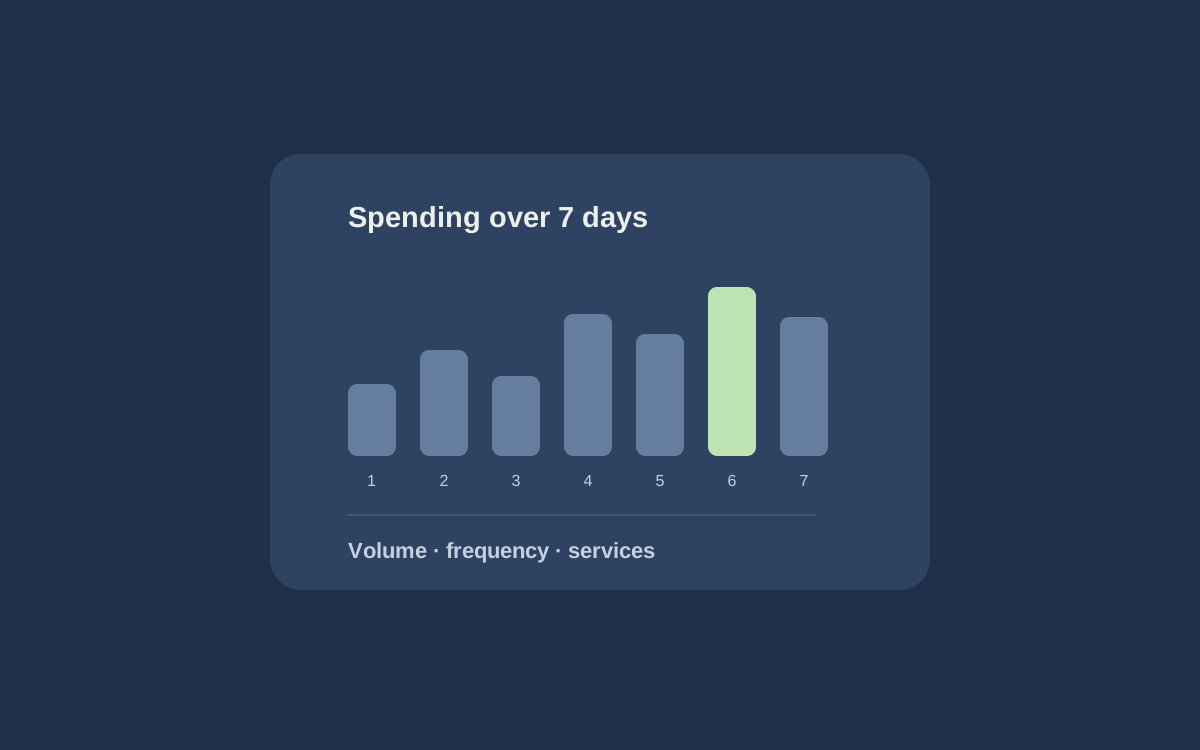
The home spending widget shows the last seven days, available balance, and net charges after refunds. A larger view provides more detail. The limits widget shows usage in the active workspace. Confirm you selected the right team: workspaces have separate accounting.
When spending rises, compare days, services, and runs. A larger catalog, changed scenario, or extra processing may explain it. A tall graph bar alone does not identify the work performed.
Do not extrapolate a short trial to an entire catalog without adjustment. Larger runs may require different numbers of pages, response times, and processing. Gather new observations after changing scenario or frequency.
Set an acceptable workload and compare actual usage regularly. If it exceeds your estimate, inspect new catalog sections, repeated runs, and processing changes. Include export checks in the plan: a bad file creates rework.